How to Prepare Vector Files for Laser Cutting Using SVG Kingdom
Laser cutting requires precise vector files to create clean and accurate designs. SVG Kingdom’s PNG to SVG conversion tool is an excellent resource for transforming raster images into vector files suitable for laser cutting. This guide will walk you through the process of preparing your files efficiently.
Why Use SVG Files for Laser Cutting?
SVG (Scalable Vector Graphics) files are ideal for laser cutting because they maintain their quality at any size and provide precise paths for the laser to follow. Unlike raster images, which can become pixelated, SVG files ensure clean cuts and consistent results.
Steps to Convert PNG to SVG for Laser Cutting
-
Choose Your Image:
Select a high-quality PNG image that you want to convert. Ensure that the image is clear and has defined edges, as this will result in a cleaner vector file.
-
Visit SVG Kingdom:
Go to svgkingdom.com/png-to-svg/ to start the conversion process.
-
Upload Your PNG File:
Click the upload button to select your PNG file from your computer. SVG Kingdom supports various file sizes, but for best results, use images with a resolution of at least 300 DPI.
-
Adjust Conversion Settings:
Use the tool’s settings to adjust the conversion parameters. You can modify options like color reduction, smoothing, and path precision to achieve the desired level of detail in your SVG file.
-
Convert and Download:
Once you’ve adjusted the settings, click the convert button. After processing, download your new SVG file. Ensure that the paths are clear and well-defined.
Tips for Optimizing SVG Files for Laser Cutting
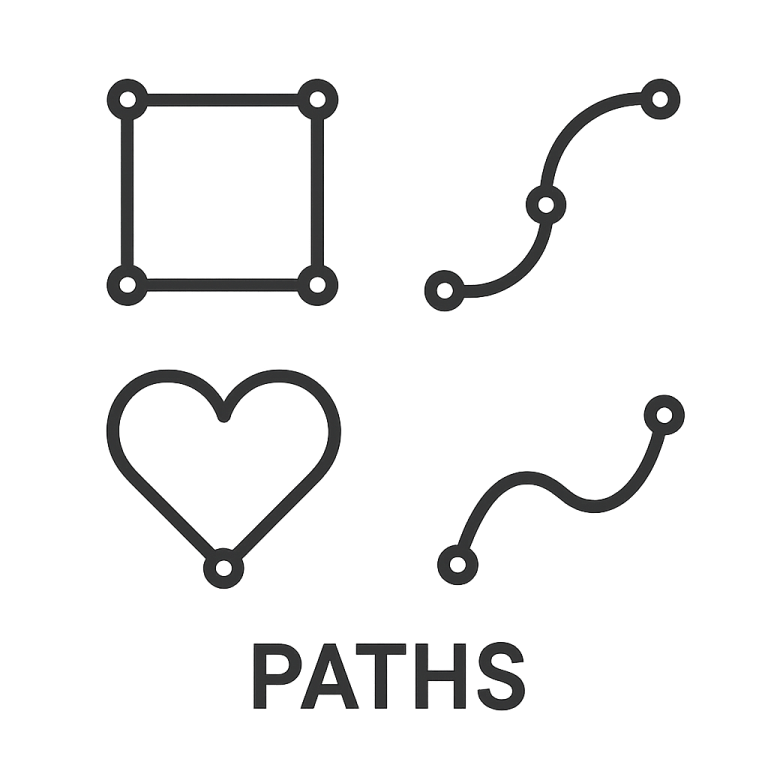
- Simplify Paths: Reduce the number of nodes in your vector paths to make the laser cutting process faster and more efficient.
- Check for Closed Paths: Ensure all paths are closed to prevent any open cuts that can lead to incomplete designs.
- Use Layers Wisely: Organize different design elements into layers for easier editing and separation of cut lines and engravings.
- Test with a Sample: Before committing to a full-scale cut, test your design on a small piece of material to check for any issues.
Common Issues and Solutions
- Jagged Edges: If your SVG has jagged edges, try increasing the smoothing setting during conversion.
- Missing Details: If fine details are lost, adjust the path precision setting to capture intricate parts of your design.
- Overlapping Paths: Use vector editing software like Adobe Illustrator or Inkscape to manually adjust and clean up any overlapping paths.
Conclusion
Preparing vector files for laser cutting using SVG Kingdom’s PNG to SVG tool is a straightforward process that can significantly enhance the quality of your laser-cut designs. By following these steps and optimizing your SVG files, you can ensure precise and high-quality results for all your laser cutting projects.