Speed Up Your Workflow in Cricut Design Space
Cricut Design Space is a powerful tool for crafting enthusiasts, but navigating it efficiently can save you a lot of time. Here’s how you can streamline your workflow and maximize your productivity.
1. Master Keyboard Shortcuts
Keyboard shortcuts are essential for speeding up tasks:
- Copy: Ctrl + C (Windows) / Command + C (Mac)
- Paste: Ctrl + V (Windows) / Command + V (Mac)
- Undo: Ctrl + Z (Windows) / Command + Z (Mac)
- Redo: Ctrl + Y (Windows) / Command + Shift + Z (Mac)
- Group: Ctrl + G (Windows) / Command + G (Mac)
- Ungroup: Ctrl + Shift + G (Windows) / Command + Shift + G (Mac)
Familiarize yourself with these shortcuts to perform actions quickly without relying on the mouse.
2. Use Pre-Made Templates
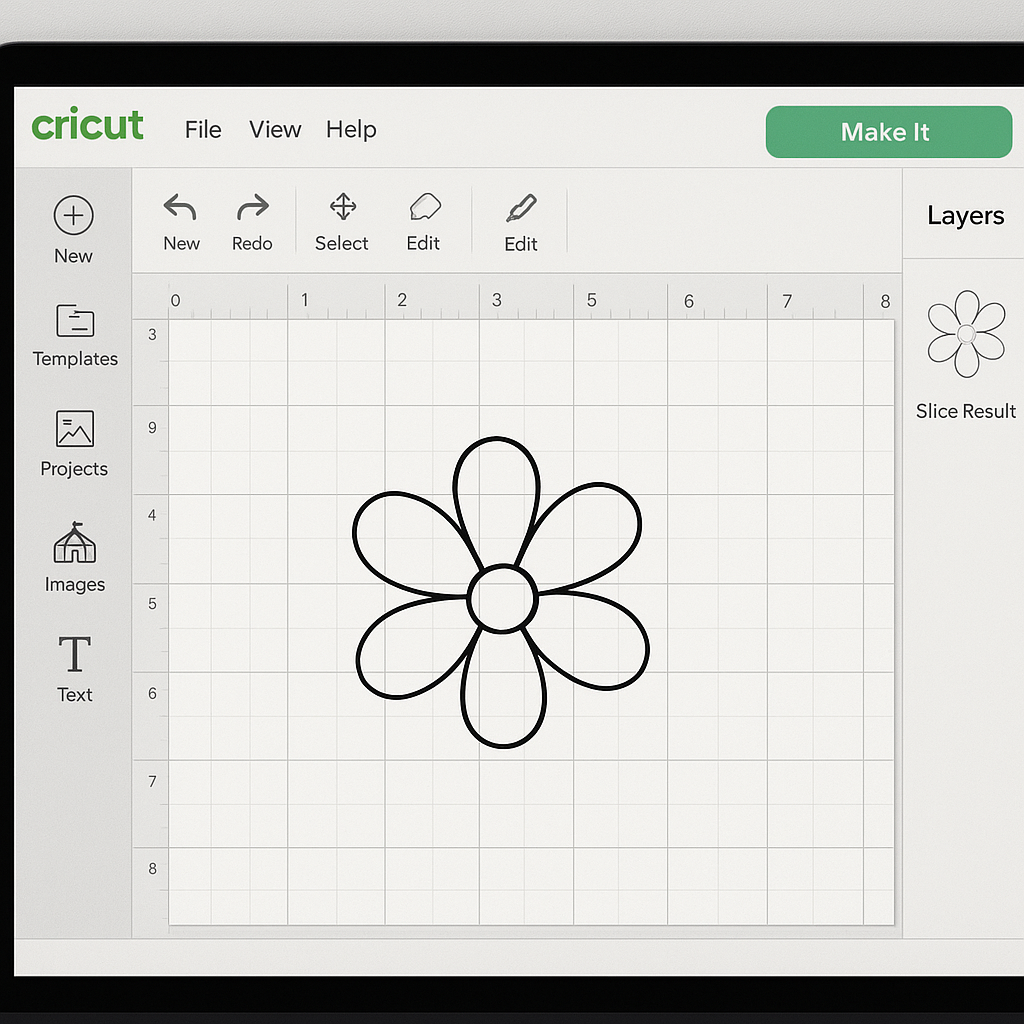
Starting with a blank canvas can be daunting. Save time by using pre-made templates available in Cricut Design Space. These templates provide a great foundation and can be customized to fit your project needs.
3. Organize Your Projects
Keeping your projects organized can significantly reduce the time spent searching for files. Use folders to categorize your projects by type, theme, or event. Label them clearly for easy retrieval.
4. Save Custom Settings
If you frequently use certain material settings, save them as custom settings in Cricut Design Space. This allows you to quickly select the settings without having to adjust them each time.
5. Utilize the Search Function
The search function in Cricut Design Space is a powerful tool for quickly finding images, fonts, and projects. Use specific keywords to narrow down the results and locate what you need faster.
6. Batch Process Projects
When working on multiple projects, batch process similar tasks. For example, cut all pieces for several projects at once before moving on to assembling them. This approach minimizes setup time and keeps you focused on one task at a time.
7. Keep Software Updated
Regular updates to Cricut Design Space often include performance improvements and new features. Ensure your software is always up-to-date to benefit from these enhancements and avoid potential bugs.
8. Explore Advanced Features
Take time to learn advanced features like slicing, welding, and contouring. These tools can help you create more complex designs efficiently, reducing the need for manual adjustments.
9. Leverage Cloud Syncing
Cricut Design Space allows you to save projects to the cloud. This means you can access your designs from any device, ensuring you can work on your projects wherever you are without losing progress.
10. Join the Cricut Community
Engage with the Cricut community through forums and social media groups. Sharing tips and learning from others can introduce you to new techniques and shortcuts you might not have discovered on your own.
By implementing these strategies, you can enhance your efficiency and enjoy a smoother crafting experience in Cricut Design Space. Happy crafting!