Optimizing Cricut Cutting Speed Settings
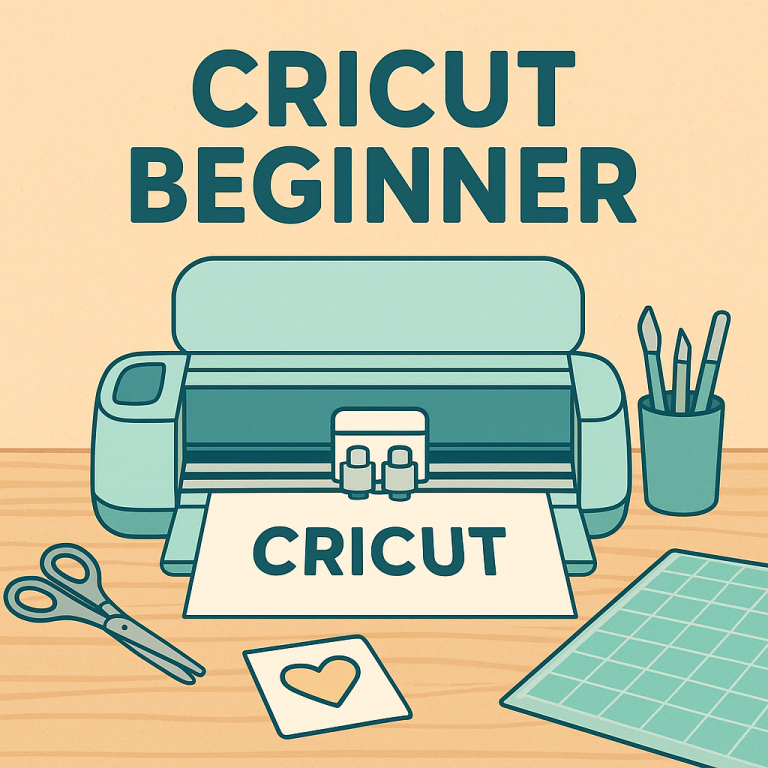
Cricut machines are versatile tools for crafting enthusiasts, offering precise cuts for a variety of materials. However, optimizing the cutting speed settings is crucial to achieve the best results. This guide provides practical tips to enhance your Cricut cutting experience.
Understand Material Requirements
Different materials require different cutting speeds. Here’s a quick overview:
- Paper and Cardstock: These materials can generally be cut at higher speeds since they are thin and easy to slice through.
- Vinyl: Vinyl is flexible but requires a slower speed to avoid tearing.
- Fabric and Leather: These materials need slower speeds for clean cuts.
- Foam and Chipboard: Thick materials require the slowest speeds for precision.
Use the Right Blade
The blade you choose impacts the cutting speed settings. Ensure you are using the appropriate blade for your material:
- Fine-Point Blade: Best for paper, vinyl, and thin materials.
- Deep-Point Blade: Ideal for thicker materials like magnet sheets and chipboard.
- Rotary Blade: Perfect for cutting fabric.
Adjust Speed in Design Space
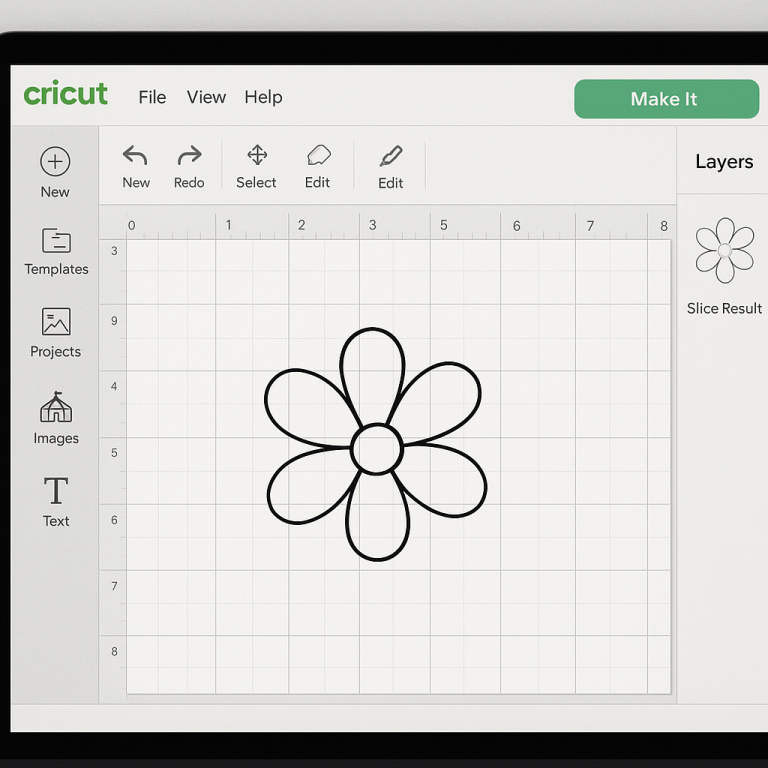
Cricut Design Space allows you to adjust speed settings for each project. Follow these steps:
- Open your project in Cricut Design Space.
- Select the material you are cutting. Design Space will recommend default settings.
- Click on “Edit” to manually adjust the speed slider. Lower speeds typically yield more accurate cuts.
Test Cut Before Committing
Perform a test cut to ensure the settings are optimal. This can save time and materials by confirming that your chosen speed works well with the material.
Consider Blade and Mat Condition
A dull blade or worn-out mat can affect cutting performance. Regularly check and replace these components to maintain optimal cutting speed and quality.
- Blade: Replace when cuts become less precise.
- Mat: Clean or replace when it loses tackiness.
Keep Your Machine Clean
Regular maintenance of your Cricut machine ensures it operates smoothly. Dust and debris can slow down the machine and affect cutting accuracy.
Experiment with Custom Settings
Don’t be afraid to experiment with custom settings in Cricut Design Space. Each project may have unique requirements, and finding the perfect balance between speed and quality is key.
Conclusion
Optimizing your Cricut cutting speed settings involves understanding your material, using the right tools, and making adjustments in Design Space. Regular maintenance and testing will ensure your projects turn out perfectly every time. With these tips, you can enhance your crafting efficiency and enjoy smoother cutting experiences.