Creating an Anchor SVG
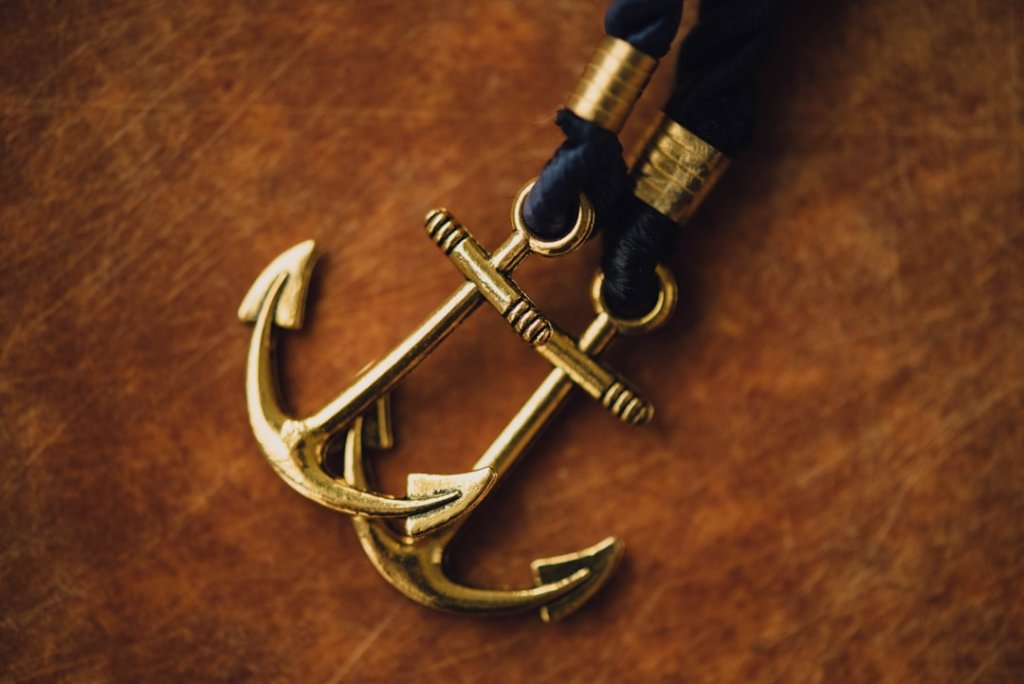
Scalable Vector Graphics (SVGs) are a popular choice for web design due to their scalability and crisp quality on any device. An anchor SVG can be a perfect addition to your nautical-themed website or design project. This guide will help you create a simple anchor SVG.
Understanding SVG Basics
SVGs are XML-based vector images that allow for high-quality graphics with small file sizes. They can be easily styled with CSS and manipulated with JavaScript. SVGs are resolution-independent, meaning they look great on any screen size or resolution.
Creating an Anchor SVG
Below is a step-by-step guide to creating a basic anchor SVG:
Step 1: Set Up the SVG Container
Start by creating the SVG container. This defines the canvas where your anchor will be drawn.
<svg width="100" height="100" xmlns="http://www.w3.org/2000/svg">

</svg>
Step 2: Draw the Anchor
For a simple anchor, you’ll need a circle for the ring and a path for the anchor’s shank and flukes. Here’s how you can do it:
<svg width="100" height="100" xmlns="http://www.w3.org/2000/svg">
    <circle cx="50" cy="20" r="10" stroke="black" stroke-width="2" fill="none" />
    <path d="M50,30 L50,70 M50,70 Q40,80 30,70 M50,70 Q60,80 70,70" stroke="black" stroke-width="2" fill="none" />
</svg>
Explaining the Elements
- <circle>: Draws the ring at the top of the anchor. The
cxandcyattributes define the center of the circle, whilerdefines the radius. - <path>: Creates the shank and flukes. The
dattribute contains a series of commands and parameters to draw the lines and curves.
Customizing Your Anchor
SVG allows for easy customization. Here are a few ways you can modify your anchor:
- Change Colors: Modify the
strokeandfillattributes to change colors. - Resize: Adjust the
widthandheightof the SVG container to resize the anchor. - Stroke Width: Change the
stroke-widthfor thicker or thinner lines.
Using the Anchor SVG
Once your SVG is ready, you can incorporate it into your HTML files directly or use it as an image source. Since SVGs are text-based, they can be easily edited and manipulated with CSS and JavaScript.
Benefits of Using SVGs
- Scalability: SVGs maintain quality at any size.
- Performance: Smaller file sizes lead to faster load times.
- Style Control: Easily style with CSS for dynamic designs.
Conclusion
Creating an anchor SVG is straightforward and offers numerous benefits for web design. With the ability to scale and customize, SVGs are a versatile choice for modern web development. Experiment with different shapes and styles to make your anchor fit perfectly into your project.