Baby Onesie Saying SVG for Cricut: The Ultimate Guide
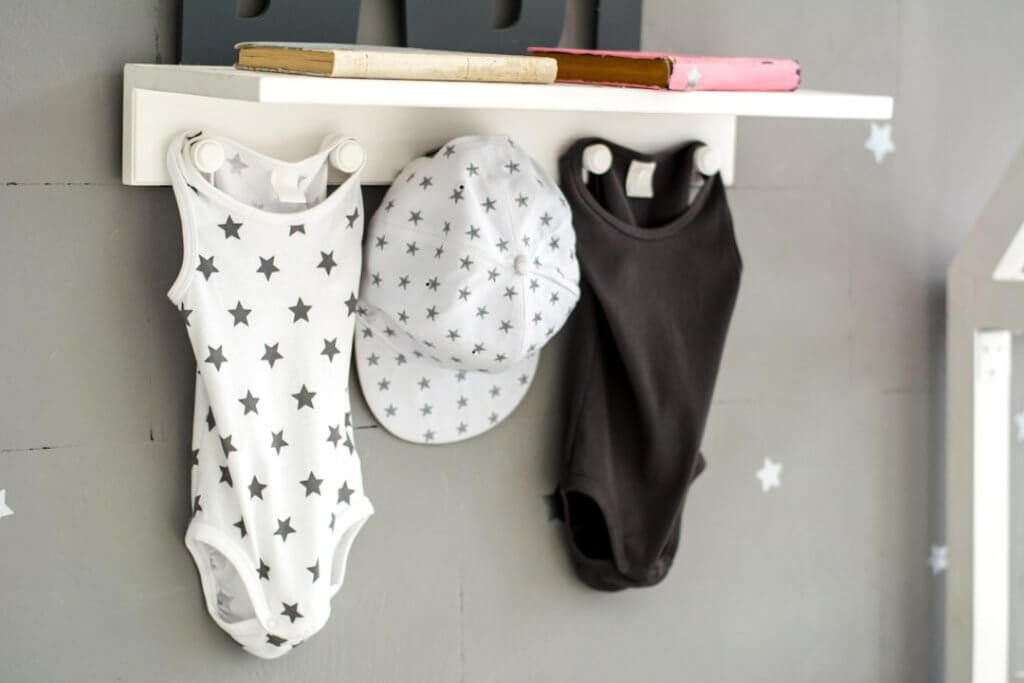
Imagine gifting a custom baby onesie with an adorable saying—crafted by you! With the right SVG file and your Cricut or Silhouette machine, you can turn simple bodysuits into heartwarming, one-of-a-kind keepsakes. Whether you’re a seasoned crafter or just starting out, learning about baby onesie saying SVGs for Cricut will open a world of creative possibilities.
What Is a Baby Onesie Saying SVG for Cricut?
An SVG (Scalable Vector Graphic) file is a digital design format popular among crafters. Unlike pixel-based images, SVGs retain crisp lines and smooth edges at any size, making them perfect for cutting machines like Cricut and Silhouette. A baby onesie saying SVG is a specific SVG design that features cute, funny, or heartfelt phrases tailor-made for baby bodysuits.
These sayings range from witty (“Milk Drunk”) to sentimental (“Little Miracle”), allowing you to personalize baby gifts or nursery wardrobes. The SVG format ensures your design will cut cleanly, even on small onesie sizes, and can be resized without losing quality.
Common Uses for Baby Onesie Saying SVGs
Baby onesie saying SVGs for Cricut are incredibly versatile. Here are some popular ways crafters use them:
- Personalized Baby Gifts: Make memorable presents for baby showers, birthdays, or holidays.
- Milestone Outfits: Create monthly onesies for photo shoots (“One Month Old,” “First Easter,” etc.).
- Announcement Apparel: Design onesies for pregnancy or gender reveals with clever sayings.
- Everyday Wear: Add humor or sweetness to a baby’s daily wardrobe.
- Small Business Products: Sell custom onesies at craft shows or online shops.
Best Materials for Using Baby Onesie Saying SVGs
For the best results with your Cricut or Silhouette, it’s crucial to choose the right materials. Here are the top options:
- Heat Transfer Vinyl (HTV): The most popular choice for fabric projects. HTV comes in a variety of colors and finishes (matte, glitter, flocked) and bonds to cotton onesies with a heat press or iron.
- Infusible Ink: Compatible with Cricut machines, this ink creates vibrant, permanent designs, but requires polyester onesies for best results.
- Fabric Paint with Stencils: Cut the SVG design from stencil vinyl and use fabric paint for a hand-painted look.
- Printable HTV: Allows you to print colorful, detailed SVG designs and transfer them onto the fabric.
Always pre-wash your onesies to prevent shrinkage and ensure a smooth application.
How to Use a Baby Onesie Saying SVG with Cricut
Step 1: Choose and Download Your SVG
Select a high-quality baby onesie saying SVG from a reputable site. Make sure the design is compatible with Cricut Design Space or Silhouette Studio.
Step 2: Upload the SVG to Your Design Software
Open Cricut Design Space, click “Upload,” and import your SVG file. Resize it to fit your onesie (typically 3.5 to 5 inches wide).
Step 3: Cut the Design
- Place HTV (shiny side down) on your cutting mat.
- Mirror the design before cutting to ensure it appears correctly on the fabric.
- Select the appropriate material and blade settings, then cut.
Step 4: Weed and Apply
Remove the excess vinyl (called “weeding”) so only the phrase remains. Position the design on the onesie, cover with a Teflon sheet or parchment paper, and press using a heat press or iron, following the HTV manufacturer’s instructions.
Peel away the carrier sheet, and your custom baby onesie is ready!
Tips for Beginners
- Start Simple: Choose easy-to-weed fonts and minimal designs for your first projects.
- Test Cut: Always do a small test cut with your material to check settings.
- Use Quality Onesies: 100% cotton onesies work well with most HTV.
- Keep Your Workspace Clean: Lint or dust can affect vinyl adhesion.
- Be Patient: Take your time with weeding and application for a professional finish.
- Practice Makes Perfect: Don’t get discouraged if your first attempt isn’t flawless!
Popular Baby Onesie Saying SVG Ideas
Looking for inspiration? Here are some favorite sayings to use with your Cricut:
- “Born to Sparkle”
- “Brand New”
- “Hello World”
- “Mommy’s Little Miracle”
- “Tiny Human”
- “Worth the Wait”
- “Cuter Than Cupid” (Valentine’s)
- “Little Pumpkin” (Fall)
- “Santa’s Helper” (Christmas)
You can customize these or design your own using free fonts and graphics.
Where to Find Baby Onesie Saying SVGs
There are many websites offering free and premium SVG designs specifically for baby onesies. Look for bundles, seasonal collections, or even create your own. For a massive selection of high-quality options, check out SVGKingdom’s 200,000+ SVG design collection.
Conclusion
Making custom baby onesies with saying SVGs for Cricut is fun, rewarding, and surprisingly easy. With the right SVG file, materials, and a little practice, you can create adorable, professional-looking gifts or products in no time. Ready to start crafting? Explore thousands of creative SVGs and bring your baby onesie ideas to life at SVGKingdom!
Resources
- SVGKingdom: 200,000+ SVG Designs
- Cricut: Uploading SVG Files
- Silhouette: Using SVG Files
- Persia Lou: Best SVG Files for Cricut
- Craftables: Applying Heat Transfer Vinyl
FAQs
What is a baby onesie saying SVG for Cricut?
It’s a digital design file in SVG format featuring phrases or sayings, specifically created for cutting and applying to baby onesies using a Cricut or similar machine.
Can I use baby onesie saying SVG files with Silhouette machines?
Yes! As long as your Silhouette software supports SVG files (like Silhouette Studio Designer Edition or higher), you can use these designs for your projects.
What materials are best for applying SVG sayings to onesies?
Heat Transfer Vinyl (HTV) is the most popular choice, but you can also use infusible ink, printable vinyl, or fabric paint with stencils created from SVGs.
Do I need to mirror my SVG design before cutting?
Yes, always mirror your design when using HTV so the phrase appears correctly when transferred to the onesie.
Where can I find high-quality baby onesie saying SVGs?
You can find a vast collection at SVGKingdom and other reputable SVG marketplaces. Always check file compatibility and licensing.